
Reviewers only
The following information is for the EMD review team. Some features described may not be accessible to those outside the team. If you are interested in helping with the review process, sign up here
Quick Links
For Submitters
| Link | Description |
|---|---|
| New submission | Open the form chooser to start a new grid, component, family, or model submission |
| Track my submissions | All issues you have opened, including their current review status |
| How to edit an issue and rerun actions | Step-by-step guide for making corrections after submission |
For Reviewers
| Link | Description |
|---|---|
| All open PRs — oldest first | The full PR queue sorted by age — review in this order |
| How to submit a review on GitHub | Step-by-step walkthrough of the review and merge process |
| PRs needing a first review | Open PRs that have not yet received any reviewer engagement |
| Approved PRs awaiting merge | PRs that have passed review and are ready for a sanity check and merge |
| PRs assigned to me | PRs where you have been explicitly requested as a reviewer |
| Reviewer project board | Kanban view of all active submissions, organised by stage and review status |
| EMD specification | The authoritative reference for all field definitions and controlled vocabularies |
| Comment templates | Comment examples and markdown templates for use by reviewers |
Reviewer Labels
| Label | When to use |
|---|---|
needs-review |
Applied automatically on submission; removed automatically on approval. Do not add or remove manually. |
needs checking |
Escalating to another reviewer with domain expertise; conditional approval requiring a second opinion; changes were requested and need re-checking once completed |
priority / urgent |
To be defined on a case-by-case basis |
Review Procedure
Reviewing oldest first is a requirement — it ensures submitters are not left waiting indefinitely.
- A pull request is created automatically when a submitter completes a form. Reviewers may be auto-assigned.
- Open the PR and read the automated summary report posted as a comment. Then examine the JSON diff.
- Approve the PR if the submission is scientifically valid, or request changes with clear, actionable comments.
- All comments must be made using GitHub's Review mode on the pull request — not in the issue or elsewhere.
- Suggestions that require the submitter to edit their entry should be left as comments on the original issue, not the PR, so the submitter sees them clearly.
- On approval, a second reviewer or maintainer performs a sanity check and merges.
Note
Reviewing oldest first is a firm requirement. Use the oldest-first link (also above).
General Rules
These apply to all submissions and should be checked during review.
IDs and naming
- IDs must not contain underscores or spaces.
- Any periods
.must be replaced with hyphens-. This applies to source IDs, model family names, and component version strings. - Confirm this for every identifier in the submitted record.
Links and references
- All links must point to permanent locations: version control platforms (GitHub, GitLab, Bitbucket) or DOIs.
- If a submitter needs a DOI for an otherwise unpublished resource, Zenodo can mint one for free.
Grid descriptions
- A description field on a grid record should only exist to document a difference between two otherwise identical parameter sets that cannot be captured by any structured field.
- Do not accept descriptions that simply restate the grid type or parameters already present in other fields.
How to Read an EMD Report
Every pull request includes an automated summary report as a comment. This is your primary review tool — read it before examining the raw diff.
Check the overall structure first. Ensure all required sections are present and populated. Compare against the latest EMD specification.
Review validation outputs. Errors indicate mandatory issues that must be fixed before merging. Warnings highlight potential inconsistencies or missing best practice — use your judgement on whether they need addressing.
Inspect identifiers and references. Confirm IDs follow the naming rules above. Ensure any referenced entities (grids, component configs, families) already exist in the registry and are correctly linked.
Assess the semantic content. Check that descriptions are meaningful and not duplicated unnecessarily. Ensure fields are used as intended — for example, grid description fields should not be used to encode information that belongs in a structured field.
Follow all links. Verify that references resolve and point to stable, permanent resources. A link to a personal Dropbox or an unversioned URL should be flagged.
The goal is not only to confirm technical validity, but to ensure the submission is clear and usable by others.
Grid Similarity
Duplicate or near-duplicate grid submissions are a common review concern. Before approving any grid record:
- Check whether a similar or identical grid already exists in the registry. The automated duplicate-detection comment on the PR is a starting point, but it is not exhaustive — apply your own judgement.
- Minor differences in naming or description do not justify a new record. A new grid entry is warranted only when there are structural differences (resolution, topology, cell count, indexing) or when the physical interpretation differs in a way that cannot be captured by existing fields.
- If you are unsure, tag the PR with
needs checkingand request input from a domain expert rather than approving or rejecting outright.
Requesting Changes
When requesting changes, provide clear and pasteable guidance so the submitter knows exactly what to do. Always include:
- What needs to change and why
- Where to make the change (field name, section)
- How to rerun the action after editing (link to the Scribe guide if helpful)
Leave change requests as comments on the original issue, not the PR. This ensures the submitter's notification goes to the right place, and the edit-to-update loop works correctly — when the submitter edits the issue body, the PR updates automatically.
Reviewer Project Board
The project board provides a consolidated view of all active submissions. It contains:
- Open submissions awaiting review
- Submissions with pull requests under active review
- Non-form issues (general discussions and questions)
- A tab per form group to make it easy to filter by record type
Columns are managed via issue labels. After an approval, an automated action removes the needs-review label and the PR moves to the approved column. Approved PRs are shown with a green tick on the pull requests page.
How to Submit a Review on GitHub
Changes and Corrections
The full link to guidance on comments and template code is provided in here. The current guidance is to submit a formal review (see image below), whereupon completion any suggested changes will be copied to the issue as well.
Info
If you accept copilot reviews or edit the branch, this will update a pull request. However updating the issue body afterwards will re-run the generation scripts and superseed these changes.
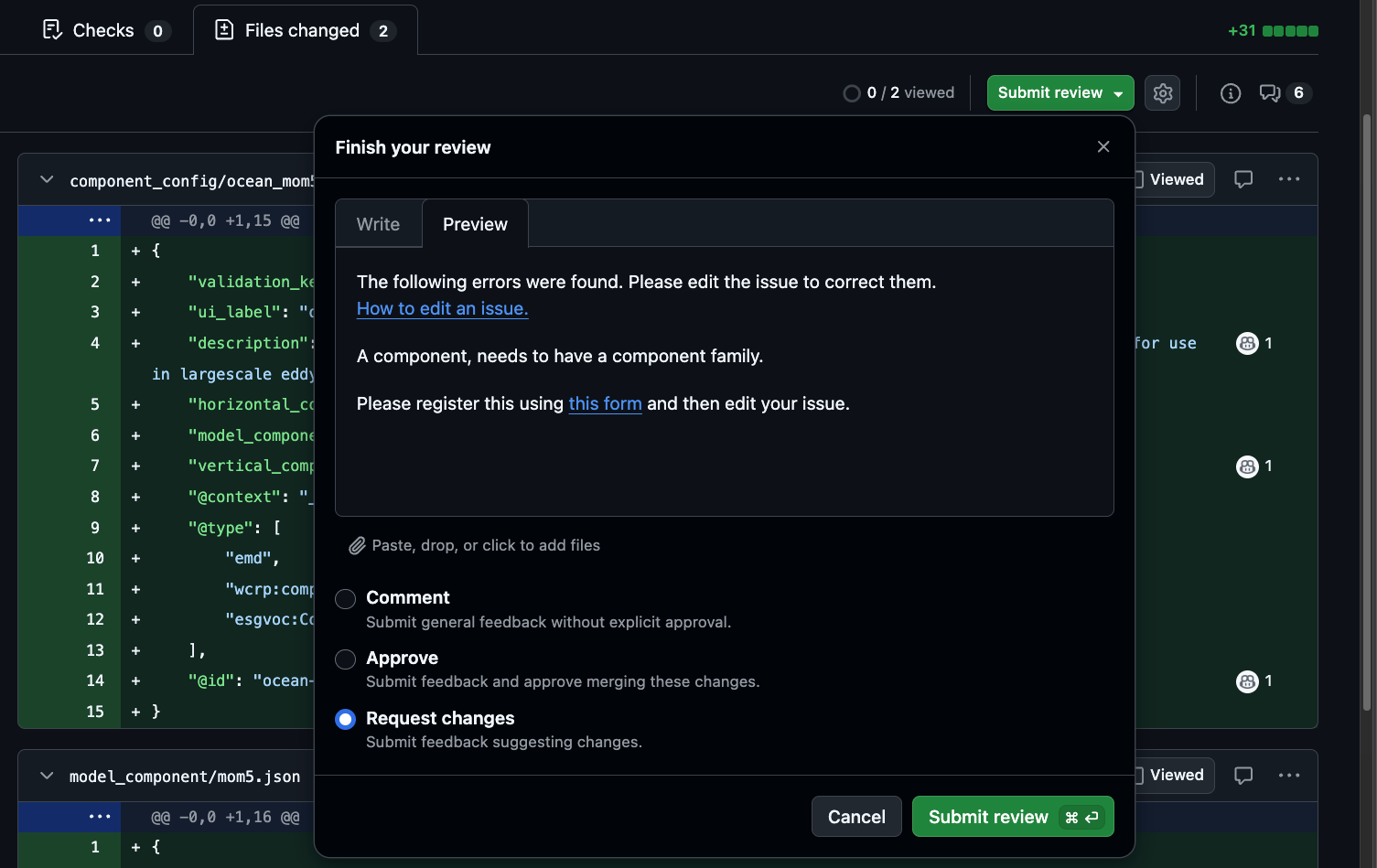
Listing Pull Requests from the Command Line
A helper script is available on the main branch for reviewers who prefer the terminal:
Example output:
PR #86 [OPEN] — New Horizontal_computational_grid : g108-mass | tempgrid_wolfiex-1774629370
  [+] Approved : -
  [~] Engaged  : -
  └─ Issue #80 [OPEN] — New Horizontal_computational_grid : g108-mass, tempgrid_wolfiex-1774629370

PR #78 [OPEN] — New Vertical_computational_grid : tempgrid_wolfiex-1774628619
  [+] Approved : -
  [~] Engaged  : davidhassell
  └─ Issue #77 [OPEN] — New Vertical_computational_grid : tempgrid_wolfiex-1774628619
Filter flags: --approved, --needs-review, --json (for structured output).
Using Copilot as a Third Reviewer
Copilot may be added as a reviewer only after you have completed your own manual review.
It must not be used as a primary reviewer and is still in training — it can and does produce incorrect results.
Appropriate uses:
- Sanity checking your own conclusions
- Flagging weaknesses you may have missed
- Suggesting grammar or phrasing improvements in description fields
- Identifying potential duplication
When working with Copilot suggestions:
- Never use "Fix all" or "Apply all fixes"
- Manually review each suggestion before acting on it
- Resolve and dismiss conversations that are not relevant
- Do not ask Copilot to review subgrid records — these are auto-generated